 Tools
My Calls
Calls from your employees' mobile phones inside the CRM: the Android app sends over call history and recordings. Connect it, add a phone and activate it by link — the calls show up on the cards.

Create a lead on a call from a new number
| Client | Type | Length | Employee |
|---|---|---|---|
| Daniel | Outgoing | 3:42 | Ryan |
| Marcus | Incoming | 1:05 | Ryan |
| +380 67 ••• 45 80 | Missed | — | Ryan |
“My Calls” collects calls from employees' work Android phones into the CRM. An app is installed on the phone, and calls, the conversation recording and the manager's comment land on the client's card — without SIP or an office PBX. A fit for managers out in the field.
Managers call from personal mobiles: the boss doesn't see the calls, there's no recording, and when an employee leaves the contact history leaves too. Mobile calls simply don't reach the CRM.
Every mobile call is in the CRM: with a recording and a link to the client. A new number creates a lead or continues a deal on its own, and the boss sees employees' calls as a list, with filters and export.
What you get
- Calls from a work Android — onto the client's card; recording — if the phone's firmware allows it (there is a check by model)
- A new number creates a lead; a call continues an open deal
- The manager's comment after a call — into the client's feed
- A call log: filters by date, direction, employee, phone and number; CSV export
- Roles inside the app: the boss configures and deletes, a manager only views the log, the dashboard and the export
How to connect
- 1Enable the appIn the Marketplace, the Telephony section. The administrator enables it for the whole account.
- 2Add a phoneIn the “My Calls” section, on the “Mobile app” tab, click “Add a phone”: name, number, employee. The month's payment is charged right away, and you get an activation code, a link and a QR.
- 3Install the app on the phoneThe employee downloads the Android app (the “Download APK” button with a QR) and activates the phone with the code.
- 4Choose the recording modeIn the phone list, in the “Recording mode” column, choose “As chosen on the phone”, “Built-in recording” or “Call log only”. On the “Settings” tab decide whether to create a lead or a deal from a new number.
 Tools
 AI Call analyticsManager call dashboard: ranking, calls, talk minutes, clients and answered % — with a period filter and sorting by any metric.Free — there's no separate charge for the app.
 Tools
 QR PlatformDynamic QR codes: one link — change the target without reprinting, with scan stats.Connecting is free; creating codes requires a paid plan: 5,000 codes, 15,000 codes per month or unlimited. Payment is monthly and is charged to the account balance. Deleting a code doesn't give it back to the limit. Without a plan you can't create new codes, but already-created ones keep working.
 Tools
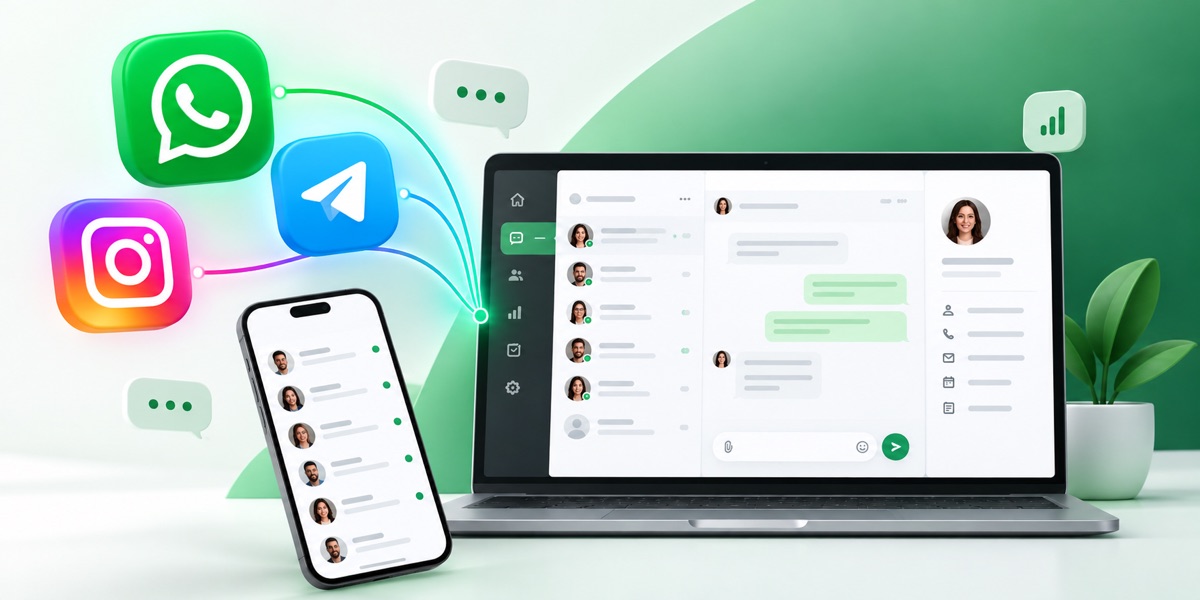
 ReconnectWhatsApp, Telegram and other messengers inside the CRM: chat, history on the card, contact and deal sync.Connecting in the CRM is free. Channels are paid under the Reconnect plan: the price is per channel per month. A channel is one connected number or account: two WhatsApp numbers count as two channels. Plans differ in the monthly limit of dialogs and voice messages and the right to message a client first — INBOX doesn't have it.